
Table of Contents
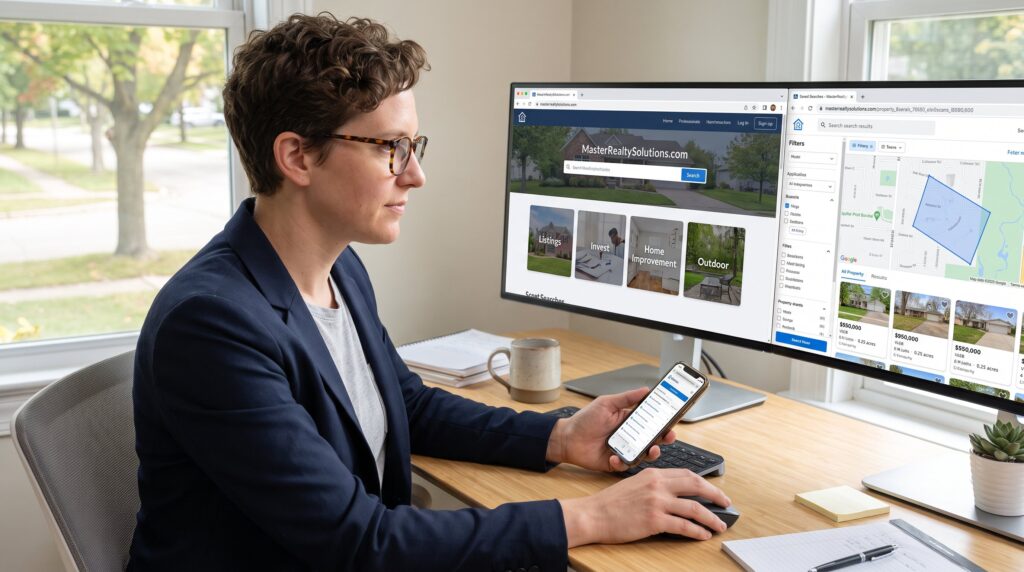
ToggleHow to Navigate MasterRealtySolutions.com starts with one clear step: land on the Home page and decide what we need, property data, investment insight, or DIY home projects. This guide shows a fast path to the site’s core tools and content in 2026. It highlights where to click, which filters return the best property matches, and how to save searches. Readers will leave knowing exactly how to reach listings, investment stories, interior and exterior advice, and how to stay updated without hunting through menus.
Key Takeaways
- MasterRealtySolutions.com offers a Home page hub that quickly directs users to property searches, investment guides, home improvement advice, and news updates.
- The top navigation menu organizes content into clear categories like Real Estate, Home Improvement, Outdoor, and Tech, streamlining access on both desktop and mobile devices.
- Advanced search filters and map-drawing tools enable precise property searches including price, size, school districts, and commute times for tailored results.
- Investment guides provide practical analyses with real case studies and numbers, helping users make informed real estate investment decisions.
- Creating an account unlocks features like saved searches, alerts, and personalized dashboards to manage listings and receive curated market updates.
- Browsing home improvement sections offers detailed project checklists, cost ranges, permit info, and trusted external resources for effective DIY planning.
Quick Site Map And Where To Start
Start here: the Home page presents the quickest route to property search, listings, services, and category guides. The fact: the Home hub on MasterRealtySolutions.com groups four primary areas, Property Search/Listings, Real Estate & Investment Guides, Home Improvement, and News & Updates, so a single click gets the user into a deep content stream.
Why this matters: a buyer who needs neighborhood comparables can move from the hero search box to active listings in under 30 seconds. A reader who wants market context can jump from the featured headlines to investment articles without opening a search form.
Practical first steps: scan the rotating feature panel for current market calls, then choose one of the big tiles (Listings, Invest, Home Improvement, Outdoor). If uncertain, open the site’s consolidated overview: the site offers a clear site resources overview that explains each section in plain language and shows service pages for agents and sellers. This overview clarifies where to find permit histories, school-district filters, and community maps, details that turn a casual browse into actionable shortlists.
Using The Main Navigation And Menus
Fact first: the top navigation is organized by Categories, News and Updates, Services, and Guides. That single row directs most readers to the content clusters they need.
How to use it: hover or tap Categories to reveal topic groups, Real Estate, Home Improvement, Outdoor, and Tech sections. The menu groups related posts so users can move from a property listing to a renovation guide with two clicks. For mobile, the hamburger menu expands the same categories but shows an inline search bar, which speeds small-screen workflows.
Tip for power users: open a category in a new tab to keep a live search running while exploring articles. This lets someone compare a listing page and a renovation checklist side-by-side without losing search context.
Related reading: for a deeper tour of the site’s services and resources, the article that compiles site features gives a concise roadmap and service explanations.
Finding Real Estate, Investment Stories And Property-Focused Pages
Direct answer: use the Property Search and the Real Estate section for listings and market analysis. Those areas contain active listings, price history, and neighborhood metrics.
Practical example: a user looking for a three-bedroom in a mid-sized city should enter the search box, set price, beds, baths, and use the map-draw tool to outline preferred neighborhoods. Advanced filters let them add school district and commute-time constraints. The search results show key facts, year built, lot size, and permit flags, on each card so comparisons are fast.
Where to read investment thinking: the Investment Guides house long-form analysis and personal investment stories. For readers seeking step-by-step investment frameworks, the site’s real estate investing guide distills strategy into timelines, expected returns, and sample case studies. That guide includes concrete examples, projected cash flow on a two-unit flip and a three-year rental yield estimate, so readers get numbers, not abstractions.
Internal link: find deeper investing material through the article labeled with the investment guide anchor text to compare strategies and timelines.
Exploring Home Improvement, Interior, Exterior And Outdoor Categories
Answer: browse the Home Improvement category and its subpages for interior, exterior, garages, and outdoor projects. Posts are organized by room and project type, so users find a kitchen lighting plan or a garage storage layout quickly.
Concrete detail: the Interior section often pairs project checklists with vendor cost ranges, e.g., a basic kitchen repaint runs $1,200–$2,500 depending on finishes, so readers can budget immediately. Exterior posts show material lifespans and permit requirements: one article lists siding lifespans with exact years for vinyl (20–40), fiber cement (25–50), and wood (10–30), which helps prioritize investments.
Practical warning: not all exterior upgrades avoid permits. The site flags common permit triggers and includes contractor vetting tips. For step-by-step how-tos that mirror trade advice, the site links to established remodeling resources and offers detailed supplier lists.
External resource: when readers need foundational renovation methods, trusted outlets like Bob Vila complement the site’s hands-on articles and give vetted contractor checklists.
Search, Filters And Tags For Faster Results
Core fact: the search bar plus advanced filters returns precise matches in under a minute when used together. Users get faster results by combining keywords, filters, and tags.
How to execute: start with a keyword, neighborhood or feature, then apply filters for price, beds, baths, property type, year built, size, and commute time. For micro-targeting, use map shapes to draw irregular search areas or apply school-district filters for family moves. Tag-driven browsing narrows content topics: clicking a tag like “garage storage” pulls articles and listings mentioning that exact term.
Example: a user seeking investment properties with minimal rehab time can set status to “move-in ready,” max price, and tag “low rehab.” Results return both listings and relevant articles that discuss expected maintenance costs and timelines.
Related internal link: for detailed instructions on exploring the site’s real estate services, consult the page linked with the service exploration anchor text to learn which filters drive best ROI in specific markets.
Account, Save, Subscribe, Contact And Privacy Options
Direct answer: creating an account unlocks saved searches, alerts, and a personal dashboard for bookmarks and messages. Subscribing to the newsletter delivers market highlights and selected how-tos by email.
What to expect: account holders can save individual listings, set price-change alerts, and receive weekly digests that list new matches and relevant how-to posts. The contact form routes inquiries to agent support or editorial staff depending on the request type. For seller tools, there’s a dedicated resources hub with listing checklists and staging guides.
Data note and caution: privacy and terms pages explain data use, cookies, and marketing preferences: readers should review these when enabling alerts. For home sellers seeking templates and timelines, the site curates seller resources that cover pricing strategy, staging budgets, and local compliance steps.
Internal links: users who want walkthroughs on seller-facing tools can open the seller resources page via the link labeled seller resources: those wanting a broader operational view can follow the masterrealty solutions anchor to learn how the platform helps list and manage properties.
Conclusion
Efficient navigation reduces hunting and speeds decisions: begin on Home, use the top Categories and search box, apply specific filters, and create an account to save results. Readers who pair the site’s listing tools with the investment and home-improvement articles gain both numbers and how-to steps. A few focused clicks in 2026 will produce a shortlist, budget, and next actions rather than a long, aimless browse.